

Free Amazon Listing Builder for Titles, Bullets, Descriptions, and Keywords
A free Amazon listing optimization tool for building and reviewing titles, bullet points, descriptions, and backend search terms in one place.
This free Amazon listing builder lets you draft your title, bullet points, product description, and backend search terms all in one place, while showing you keyword coverage and pointing out potential weak spots in your listing. This includes flagging duplicated keywords, repetition, and checking the length of each section, while also helping you to maximize the number of keywords included on your product page.
If you want to learn more about how to optimize every part of your listing, from your title, bullets, images, and A+ Content, our Amazon Listing Optimization Guide is a great place to start.
Build Better Amazon Listings Faster
Most sellers I’ve spoken with fall into one of two patterns when it comes to writing a product listing. The first is the blank page approach: write freely, hope they include the right keywords, and paste the result into Seller Central. The second is over-analysis: stuff every bullet point and description with as many search terms as humanly possible and call it “optimized.”
Neither one works particularly well.
This Amazon listing tool gives you a better option. You can upload your keyword list, draft your listing inside the editor, and get feedback as you go. You can keep track of every keyword you use (both full search terms and root words), avoid duplicating keywords, keep the length of your titles and bullets within Amazon’s requirements, and more.
It’s important to point out though that this tool, and any other listing tool, won’t do the thinking for you. A good product listing still needs good judgment about the product, the customer, and the competition. But if you want a faster, free way to build a better draft before your product goes live, this tool will help you get most of the way there.
How to Use the Free Amazon Listing Builder
Step 1: Import or paste your keyword bank
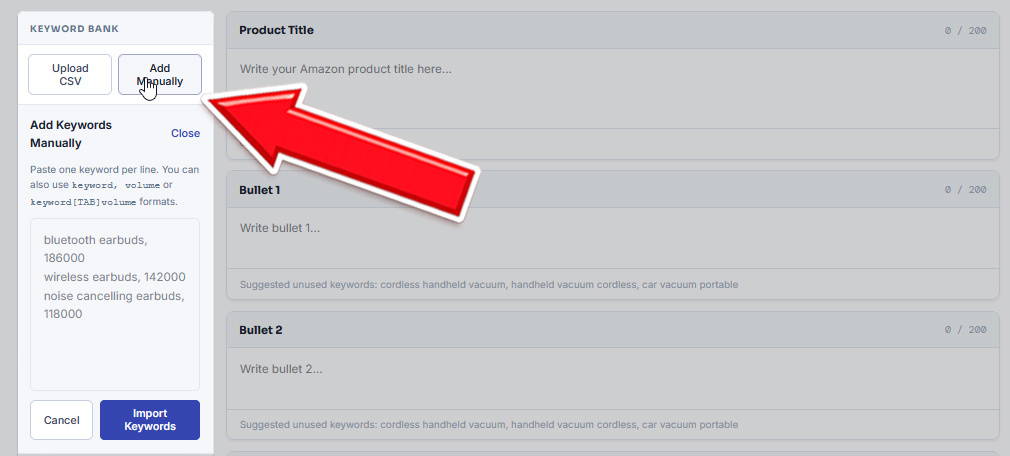
Your first step is to add the keywords that you want to target with your listing. You can paste them manually by clicking the “Add Manually” button in the top left or you can upload a CSV file if you already have a list you created with another keyword research tool.
It’s important that the keyword list you use is already optimized. You don’t want to paste in every keyword you’ve ever collected. The Listing Builder works best when the list is focused on the phrases and search terms that are relevant and important for your product. If you haven’t already done so, I recommend going through your keyword list and removing any keywords that are duplicates, competitor search terms, or unrelated to your product before you continue.
Once your keywords are uploaded, the builder groups related roots and exact phrases together. As you write, exact matches use a green dot and highlight, while root-only matches use a blue dot and highlight.
Step 2: Build your title, bullets, description, and backend terms
With your keyword list loaded, you can get started creating your actual listing. Start filling out the title, bullet points, description, and backend search term sections. As you write, the tool can detect common issues and compliance-related issues, which you will see highlighted in the “Quick Fixes” and “Compliance Alerts” sections on the right side. You can also check the left side to see a full breakdown of your current keyword usage.
I want to point out that this tool can help you build your listing, but it can’t generate one for you. For more information on the best practices for creating a product listing that converts, I encourage you to check out the Listing Optimization Guide.
Step 3: Review your score, coverage, and quick fixes
As you work through the listing, the tool updates four things in real time: your optimization score, section-level feedback, keyword coverage, and quick-fix suggestions.
The score pulls from across the full listing, not just whichever section you are currently editing. It factors in overall completeness, how well your imported keywords are covered, title strength, compliance-style warning signals, and how well you are using the backend search term field.
Just be aware that the score is just a guideline, not a guarantee. A high score doesn’t mean that Amazon will automatically approve, index, or rank your listing. Going from a clean draft to a live, optimized listing will still require your own judgement, a final review inside Seller Central, and testing to see what actually converts.
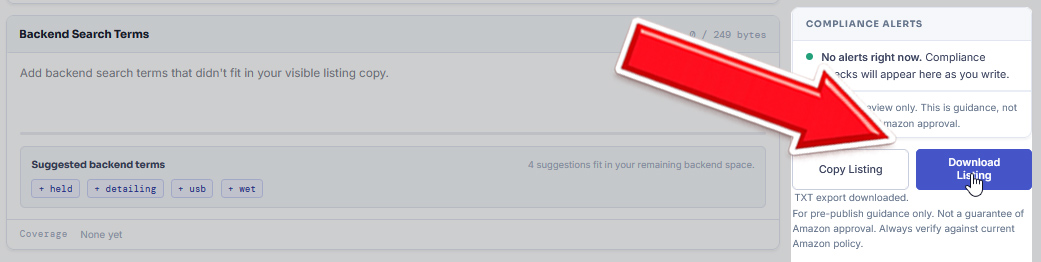
Once you’re happy with your listing, you can download a txt file by clicking the “Download Listing” button in the bottom right.
What the Tool Checks While You Build
Title length, front-loading, and repetition
Your product title is one of the most important parts of your listing, and unfortunately it’s where sellers tend to make the biggest mistakes. Either their title is too vague to rank for anything, or it is so overloaded with modifiers that it’s impossible to read.
When creating your product title, the tool will check for:
- Length relative to Amazon’s guidelines
- Repeated non-essential words
- Mobile-title cutoff risk when important keywords are pushed too far back
- Special character issues
- Overuse of promotional language
All of this matters even more since Amazon’s January 2025 title update. Sellers need to be more careful about what they include in their title, and a free tool like this one can spot common problems before your listing goes live.
Bullet strength and keyword coverage
Bullets are another great spot to improve your SEO and increase conversions. A weak bullet might mention a product feature, but still fail to give a buyer any real reason to care. A repetitive bullet just winds up wasting space and making your listing feel flat.

- Thin or underdeveloped content that needs expansion
- Ideas repeated across multiple bullets
- Keyword usage across bullets
- Generic phrasing that is not specific enough to be useful
Optimized bullets should explain what the product does, why it matters, and who it’s for. They need to balance readability and keyword usage in order to boost your conversion rate and help your Amazon SEO at the same time.
Description completeness and readability
Nowadays descriptions are an afterthought for most sellers and completely ignored by others. While it’s true that your description is not the most important part of your listing, leaving it blank or underused is the equivalent of throwing money away. This is a great spot to fit in secondary keywords and extra features that didn’t fit into your title or bullet points.
When you are writing your description the tool checks whether the section is including relevant keywords and if it’s meeting the length requirements. The checks for this section are intentionally a bit lighter than what is applied to title and bullets, because that is typically where the larger wins are.
Backend search term usage and duplicate cleanup
Backend terms are one of the easiest places to waste available space. Sellers frequently repeat words that are already visible in the title and bullets, or fill the field with phrases that do not add meaningful indexing value.
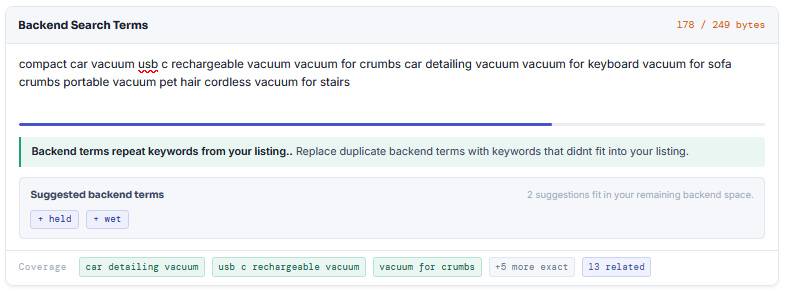
This builder functions as a practical Amazon backend search terms tool. Specifically, it helps you:
- See when the field is being underused
- Identify terms already covered in visible listing fields
- Trim filler that is burning space without adding value
- Use the available capacity more efficiently
If you want a deeper walkthrough of how the backend field works, the Amazon backend keywords guide covers it in full.
Overall coverage and optimization score
To try and give you an overall picture of how optimized your listing is, we added a scoring system that looks at every part of your listing and how well you incorporated the keywords from your keyword bank.
Some of the factors that go into your final score are:
- Listing completeness
- Exact keyword coverage
- Title quality signals
- Compliance-related warning flags
- Keyword hygiene across all fields
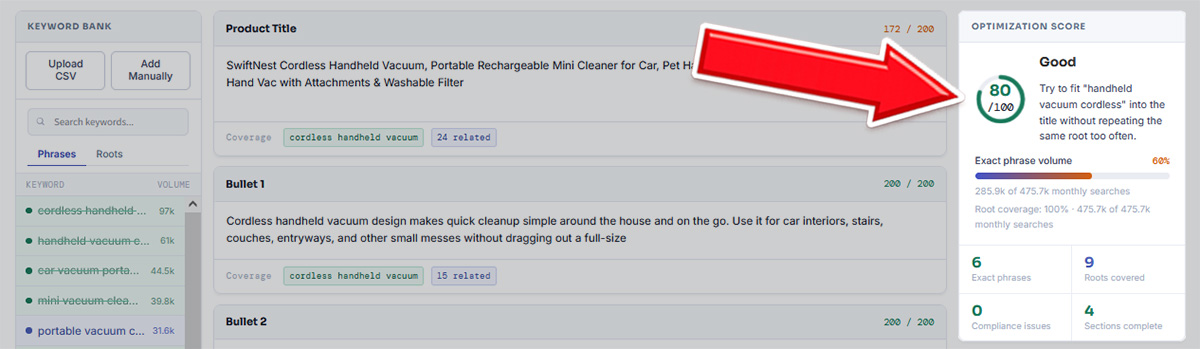
You’ll also be able to see stats like what percentage of monthly searches you included in your listing (based on your keyword list data) and how many phrase or root match keywords you included.
Just keep in mind that the optimization score is only meant to be a guideline. The tool can check things like keyword usage, field length, and duplication, but it can’t check whether your copy is well-written, grammatically correct, or actually compelling to a buyer. A high score means the basics and keyword usage look good. It doesn’t mean the listing is ready to publish. Always read the final copy with fresh eyes before it goes live.
Learn More About Amazon Listing Optimization
Not sure how to take your product page to the next level? Check out some of our other related guides and resources on Levi’s Toolbox:
- Read the full Amazon Listing Optimization Guide for important tips for improving your titles, images, bullet points, reviews section, and more.
- Use the Amazon Backend Keywords Guide if you want more information and tips for making the most of your backend search term field.
- Check out our Amazon A+ Content Guide to see a full guide on how to create A+ Content and an A+ Brand Story for your listing.
- Our Amazon Product Images Guide can help you create high-converting images for your listing
- Ready to take your listing to the next level? Read our guide to the Best SEO Tools for Amazon Sellers to learn about tools that can improve your keyword research, indexing, and listing creation.
Amazon Listing Builder FAQs
Is this Amazon listing builder free to use?
Yes, the Levi’s Toolbox Amazon Listing Builder is completely free to use. You can draft, review, and clean up your product listing without signing up or paying a subscription. As long as you have a keyword list available, you can use this tool to help create optimized titles, bullets, description, and backend search terms for your Amazon product page.
What does this tool help me optimize on an Amazon listing?
This tool covers all of the main sections of an Amazon listing: your title, bullet points, description, and backend search terms. It also highlights your keyword coverage, generates an overall listing score, and can flag potential issues like repetitive wording, thin sections, and wasted backend search term space.
Can this tool guarantee my listing will comply with Amazon’s policies?
No. This tool is a great guideline, but it is not part of an official Amazon review system. It is designed to help you detect common issues like overly long titles, repeated wording, and promotional language, but category-specific rules, restricted product policies, and all final enforcement decisions all sit with Amazon.
How many keywords should I use across my title, bullets, and backend search terms?
There is no single right number, because it depends on the product, the keywords shoppers often use, and how naturally the search terms fit into your copy. In practice, the better goal is to try to cover the important search terms without keyword stuffing, or making the listing hard to read. If you need better keywords before you start, check out our guide to the best Amazon keyword research tools for a breakdown on the 7 best tools available today.
What is the backend search term limit on Amazon?
Amazon’s backend search term field has a limit of 250 bytes. Bytes and characters are not always the same thing, so the safest approach is to stay comfortably under the limit rather than trying to fill it exactly. Focus on using the space efficiently: remove words already visible in your title and bullets, cut filler phrases, and prioritize keywords you have not covered elsewhere in the listing. For an in-depth guide, see our Amazon backend keywords guide.
Should I use this tool instead of Amazon listing software like Helium 10 or Jungle Scout?
I build this page as a fast, free way for sellers to build and clean up their product listings. Paid sofware is great and I recommend using tools like Helium 10 or Jungle Scout if you need to create an optimized keyword list, track competitors, or analyze your listing at a deeper level. If you’re considering using a paid tool to help you optimize your listing, feel free to read out guide to the Best Listing Software for Amazon Sellers.
More Free Tools for Amazon Sellers
If you’re still new to the world of Amazon, we have a bunch of free tools and guides I recommend checking out.
- Amazon Product Image Checker: A free tool to quickly test if your product images meet Amazon’s requirements and best practices. Just upload your image and view your results.
- Amazon PPC Calculator: If you need help planning or optimizing your ad campaigns, our free tool can help. Input your product details and target ACoS to determine target ROAS, CPC, estimated profit margins, and more.
- Free Amazon FBA Profit Calculator: Still searching for a product to sell? Our free calculator will let you quickly determine estimated profits, margins, Amazon fees and more in less than a minute. Based on the most up-to-date data from Amazon.
- Amazon Search Term Report Analyzer: If you’re already running Amazon ads and need help interpreting your search term report, this free tool can help you find your best performing and worst performing keywords, so you can optimize your campaigns.
