

Analyze Your Amazon Search Term Report
Upload your Sponsored Products Search Term Report, analyze your campaign, spot wasted ad spend, and harvest winning keywords, all in your browser.
How to Use the Amazon Search Term Report Analyzer
Before you start, it helps to know what the Amazon Search Term Report actually is.
This report is a downloadable CSV file from Amazon Ads that shows the exact customer search terms that triggered your ads, along with click data, ad spend, sales, and order information for each term. It is one of the most useful reports in Amazon Ads because it helps you spot wasted ad spend, find profitable search terms, and better optimize your campaigns.
The one downside of this report is that by default, it is formatted as a giant CSV file with dozens of columns and information that can feel very overwhelming to look at.
That’s where the Analyzer comes in. Just drag and drop your CSV file into the upload area, and the browser-based tool will analyze your data and create an easy-to-read report. If you don’t have your own data, or you just want to see how it works, you can always click the Try Sample Data” button.
The report is divided into four sections. Start by reviewing the Overview card at the top. This gives you a quick snapshot of your campaign performance based on your report, including your Total Ad Spend, Total Sales, Orders, ACoS, CVR, and Avg CPC, given the time period included in your report.
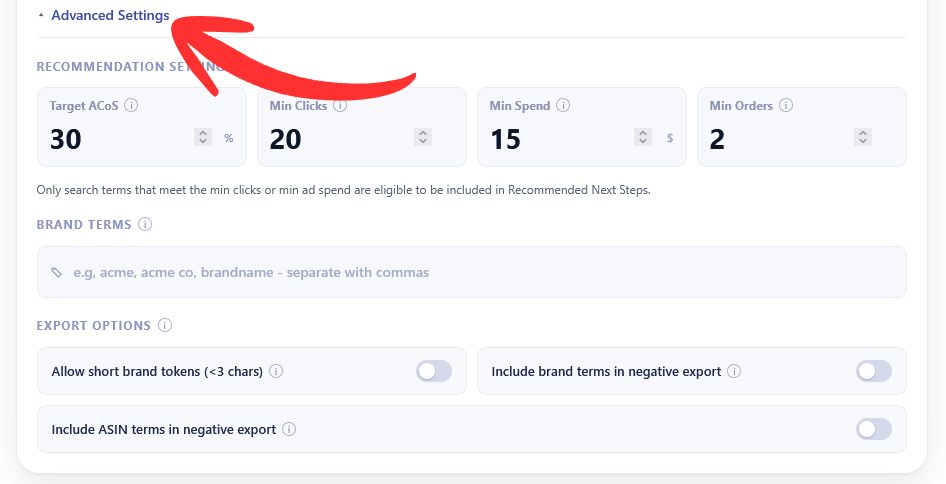
Next, you can open the Advanced Settings by clicking on the dropdown tab right below the Overview section. Here, you can adjust the requirements that search terms need to meet to be included in your results. For example, you can increase or decrease the minimum number of clicks or spend that a search term has to meet in order to be eligible to appear. You can also add in specific branded keywords if you wish.
The next three sections will display the specific results from your uploaded Search Term Report. They include:
- Poor-Performing Keywords, to find search terms wasting ad spend
- Harvestable Keywords, to find profitable terms, you may want to add as Exact match keywords
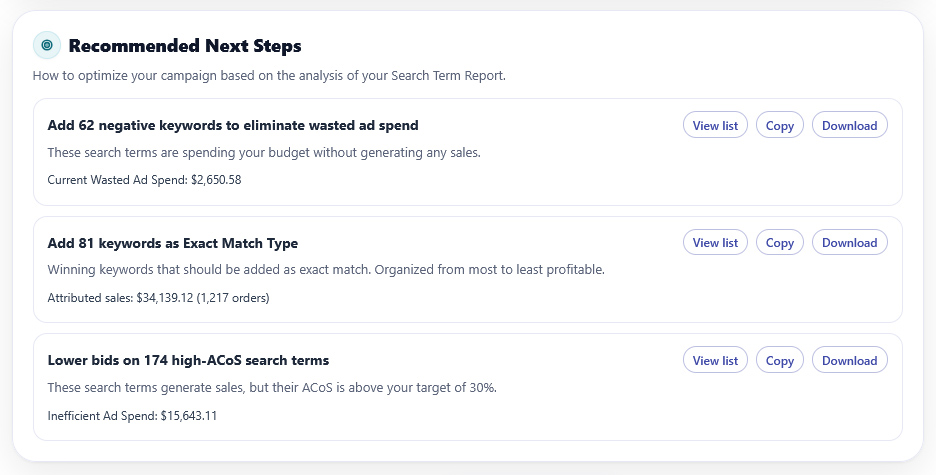
- Recommended Next Steps, a prioritized action list that tells you what to do next
Each section includes buttons to View list, Copy, or Download, so you can quickly move from analysis to action inside Amazon Ads.
If you want a full record of everything, click “Export Summary Report.” This downloads a complete CSV with your settings, overview totals, recommendation counts, and all rows from each recommendation section.
How to download the Amazon Ads Search Term Report
To use this tool, you’ll need to have a CSV file of your Amazon Ads Search Term Report. To download your report, you’ll need to log in to your Amazon Ads dashboard and find the Measurement and Reporting tab on the left side of your screen.
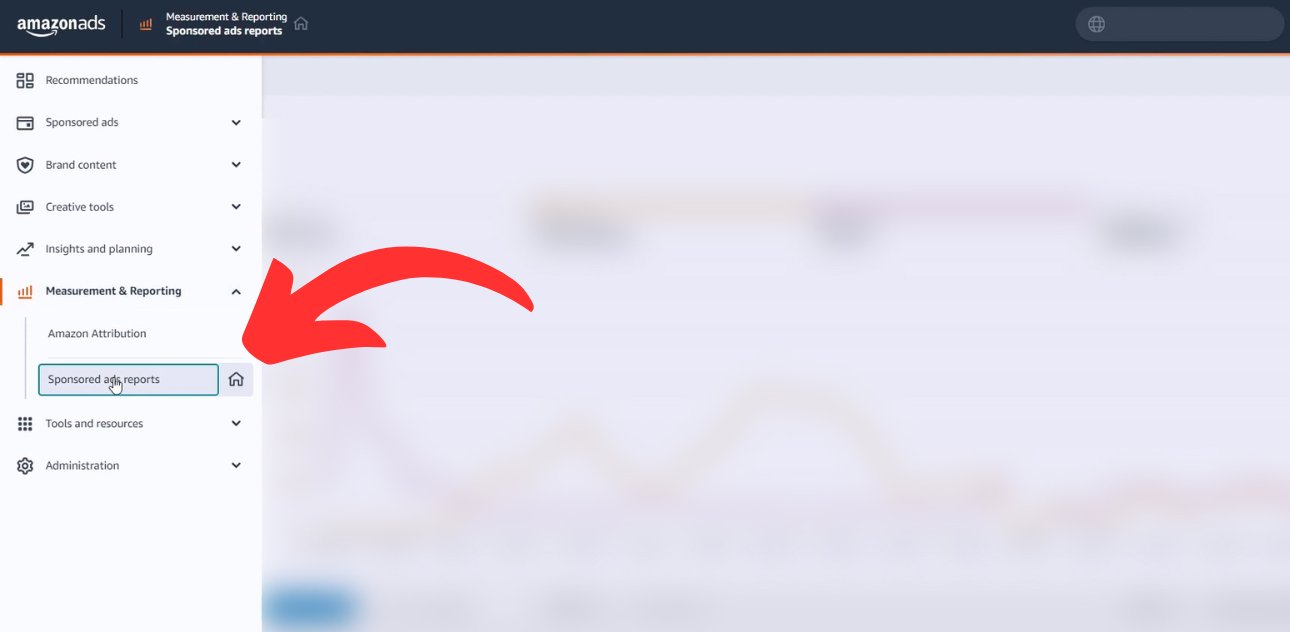
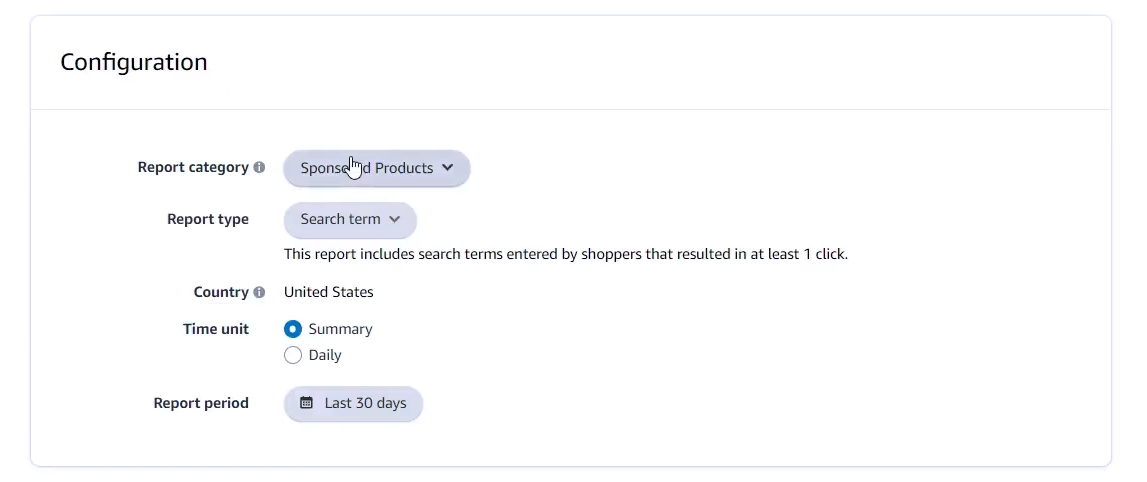
From here, find Sponsored Ads Reports and click Create Report. Next, you’ll want to choose Sponsored Products as the report category and select Search Term as the report type. For the report period, make sure to choose a date range that will give you a meaningful amount of information to work with. I recommend using either 30 or 60 days as a baseline.
Once you’ve entered all of the details, you can generate the report and download the CSV once it’s ready.
If you work in Seller Central instead of the ads console, you can also reach it under Reports, Advertising Reports, then create a new report and select Search term under Sponsored Products.
How to Interpret Your Results
When interpreting your results, it’s important to remember that the results you see will depend on the thresholds set in Advanced Settings, so if the tool feels too strict or too loose, consider adjusting your Target ACoS, Min Clicks, or Min Spen, and check your lists again.
Poor-Performing Keywords
This section highlights search terms that are underperforming and potentially wasting your ad dollars. The list is ranked by wasted spend, so the biggest problem keywords appear first. These are terms that are above your Target ACoS and have enough data to judge based on your Min Clicks or Min Spend settings.
This is the first place I recommend you check because it’s an easy way to start optimizing your budget. You can click the “View All” button to see the full list in more detail and click the copy button to add the full list to your clipboard.
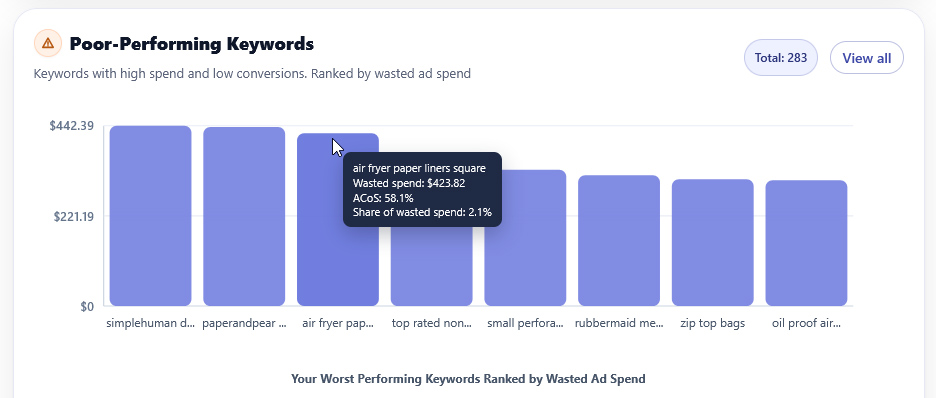
New in the 2.0 version of this app, we’ve added a chart at the top of the section to act as a quick way to see where most of your wasted spend is coming from. It can be used to highlight your biggest waste drivers first so you can prioritize the search terms that are costing you the most.
Harvestable Keywords
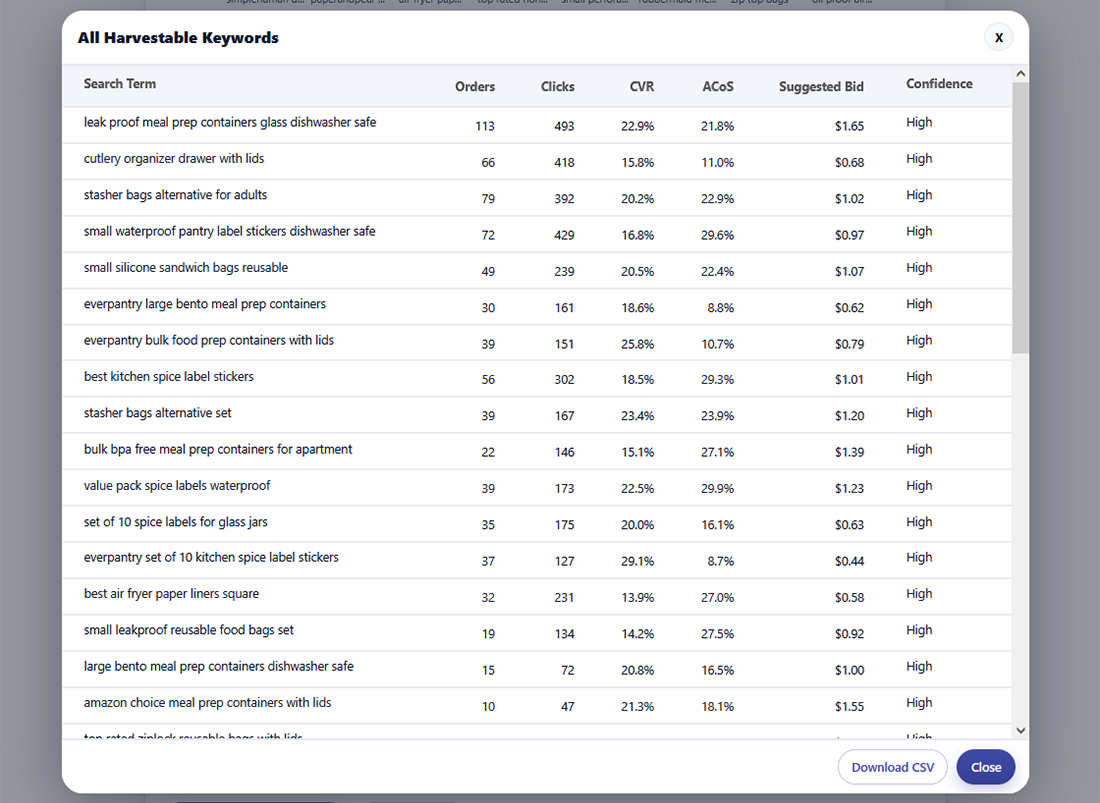
This section shows profitable search terms that are not yet being targeted as Exact match keywords. These are strong candidate keywords to “harvest” into Exact campaigns or ad groups so you can control your bidding and ad budget more directly.
For more information on this method, check out our full guide on Amazon Sponsored Product Campaigns.
For a keyword to appear in this section, it must meet your ACoS goal, meet the minimum order threshold, and overperform compared to the rest of the search terms in your report.
Use the “Copy Harvestable Keywords” button to copy the list with suggested bids, one line per term. You can paste that into your workflow and build out new Exact targets faster.
The suggested bid is based on your historical CPC data for that search term, usually around the higher end of what you have already paid. It is not a perfect number, but it gives you a practical starting point instead of guessing.
If you want more detail, click “View All” to review the full list, suggested bids, and confidence levels.
Recommended Next Steps
The final section is a short, prioritized list of recommended optimizations based on the data from your report.
Each recommendation includes a reason, an impact label, and buttons to view the full list, copy the list, or download the search terms included in each section.
You will usually see recommendations like
- Add negative keywords for terms that are spending and not converting
- Add keywords as an exact match to scale profitable search terms
- Lower bids on terms that are getting sales but missing your ACoS goal
If you are not sure where to start, begin with the highest-impact recommendation shown in this section.
Tags and Confidence
The Free Amazon STR analyzer also adds tags and confidence signals to help you review results faster.
A term tagged “Brand” means it matches one of the Brand Terms you entered in Advanced Settings. This can be useful since branded search terms often perform differently from generic, non-branded terms, and many sellers prefer to review these terms separately.
The Confidence label shows how much data from your report supports the recommendation, using keywords like High, Medium, or Low. For example, a search term with dozens of clicks and a high amount of spend will most likely have a “High” confidence label, while a search term with a couple of sales but only a few dollars worth of ad spend will have a “Low” confidence, since there is not yet enough data to make an informed decision.
Frequently Asked Questions (FAQs)
How do I download the Amazon Sponsored Products Search Term Report?
Open the Amazon Ads console, go to Measurement & Reporting → Sponsored Ads reports → Create report. Choose Sponsored Products, then Search term report, pick a CSV format and a 30–60 day date range, generate, and download. In some accounts this lives under Reports → Advertising reports with the same options.
What’s the difference between a keyword and a search term in Amazon Ads?
A keyword is what you bid on, set by you in targeting. A search term is the shopper’s actual query that triggered your ad. Amazon matches search terms to your keywords and attributes performance back to both the term and its target. The Search Term Report lists those shopper queries with metrics.
How many clicks should I wait before calling a search term poor-performing?
There is no universal rule, but a common working threshold is 10 or more clicks before judging a term, then weigh orders and ACoS. For higher-priced items or low CVR categories, use more clicks to reduce noise. Our analyzer lets you set Min Clicks to fit your margin and volume.
What is a good ACoS and how should I set Target ACoS?
Amazon states there is no single “good” ACoS because margins and goals vary. Many sellers target somewhere between 15% and 35% as a working band, then tune by product economics. I set Target ACoS near break-even for profit mode and higher during launches or ranking pushes.
How do I add negative keywords in Amazon Ads?
In Campaign manager, open the campaign and ad group, choose Negative targeting, then add Negative phrase or Negative exact entries and save. Negative exact blocks that precise query, while negative phrase blocks queries containing the phrase. Use negatives to stop waste and to funnel traffic to Exact.
Additional Tools for Amazon Sellers
If you’re still new to the world of Amazon, we have a bunch of free tools and guides I recommend checking out.
- Amazon Product Image Checker: A free tool to quickly test if your product images meet Amazon’s requirements and best practices. Just upload your image and view your results.
- Amazon PPC Calculator: If you need help planning or optimizing your ad campaigns, our free tool can help. Input your product details and target ACoS to determine target ROAS, CPC, estimated profit margins, and more.
- Product Listing Builder: A free tool to help you build an optimized Amazon product listing. Just add your keywords and start creating SEO optimized titles, bullets, descriptions, and more.
- Sponsored Products on Amazon: How to Set Up Ads That Sell: Learn the ins and outs of creating Sponsored Product campaigns. This guide walks you through tips, tricks, and the steps it takes to launch a profitable ad campaign in 2025.
- Amazon Listing Optimization in 2025: A Complete Guide: Increasing your product pages can take your ad campaigns to the next level. Our guide teaches you how to optimize your title, bullet points, and images to boost your conversion rates and make more sales.
- Free Amazon FBA Profit Calculator: Still searching for a product to sell? Our free calculator will let you quickly determine estimated profits, margins, Amazon fees and more in less than a minute. Based on the most up-to-date data from Amazon.
- What Is Amazon PPC? The Beginner’s Guide: If you’re still brand new to Amazon advertising this is where to start. Our guide will teach you the different ad types, how the ad auction works, and how to launch your first ad campaign.
