

Amazon Product Image Checker
Free, browser-based tool that checks Amazon image requirements and image best practices. Verify size, format, white background, zoom readiness, and more.
Add image(s) here or click to browse
Supports JPG, PNG, GIF, TIFF - single or batch mode
Use View to switch between uploaded images and check each result.
What Is the Amazon Image Checker?
Product images are one of the most important parts of your listing, so it’s important to get them right. Most sellers know the type of images they want to include, but they may not know the specific rules and requirements that Amazon enforces when it comes to adding images to your listing.
The Amazon Image Checker is a free tool designed to act as a quick and easy way to test if your images meet these requirements. It analyzes 18 different factors, including:
- File Format: It checks that your image uses one of Amazon’s accepted file formats, like JPEG, PNG, or TIFF
- Dimensions: It checks that your image is at least 1000 pixels on the longest side to enable customer zoom.
- File Size: The tool flags anything over 10 MB and verifies if your image is in the recommended range of 1-2 MB
- Subject Fill Ratio: For your main image it’s important that your product fills at least 85% of the image. This tool will tell you the approximate percentage of space your product fills.
- White Background Detection: It detects if the background is pure white (RGB 255,255,255) for main images, in order to meet Amazon’s requirements
The tool is completely safe to use and works entirely in your browser. There are no server uploads, account requirements, or email signups required. It is 100% free to use and only takes a second to get results. Simply drop in your image to get started.
How to Use the Free Product Image Checker
It’s super easy to get started with the Amazon Image Checker. As long as you have your product images ready to go, it only takes a few seconds to get your results.
- Add Your Image: Find the image you want to test and either click on the center area “Add image(s) here or click to browse”, or drag your image into the box. The tool supports common image formats like JPG, PNG, or TIFF. Once your image is successfully uploaded, you’ll see it displayed in the preview area.
- Choose Your Image Type: Choose whether the image is a Main Image or a Secondary Image using the buttons below the upload area. This step is important because Amazon has stricter rules for main images (the image that appears in search results), like requiring a solid white background.
- Review Your Results: Results are split into two sections. The “Must-Have Requirements” section includes all of the necessary checks that your image needs to pass like using the correct file size and format. The “Tips & Recommendations” section includes best practices that are not mandatory, but highly recommended.
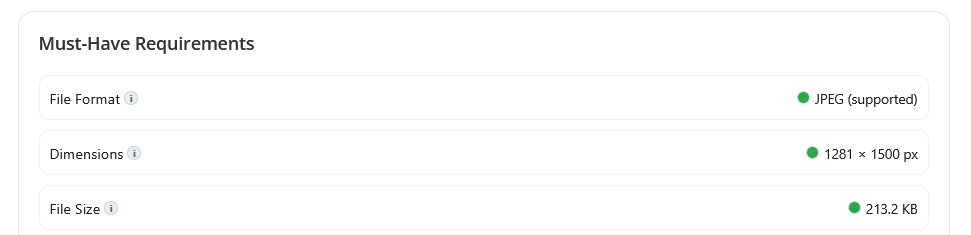
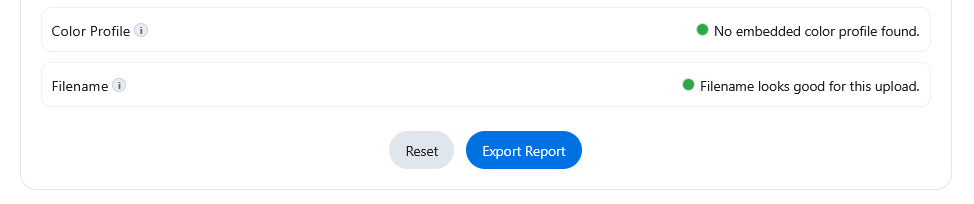
Each row of results includes a colored dot and a short description of what the tool detected. Green dots signify a pass, red dots a fail, yellow dots are used as a caution, and grey dots mean that the tool was not able to clearly determine a result. If you’re not sure what something means, you can always hover over the tooltips to get a full description for all of the 18 metrics.
Finally, if you want to download the results to your own device, you can click the “Export Report” button at the bottom of the page to get a JSON file with the tool results.
Understanding Amazon Product Image Requirements in 2026
Amazon’s rules haven’t changed a ton this year, but if you’re still new to the marketplace, you may not be familiar with all of the requirements Amazon has when it comes to product images. Even though they don’t always enforce every rule, it’s important that you know what they are and keep them in mind.
Below, I’ve listed some of the most important rules you should always follow, but I highly recommend checking out Amazon’s complete list of product image requirements for a more detailed breakdown.
Main image rules
Your main image is the photo that shows up in search results, so it needs to be clean, clear, and consistent across listings. You’ll need to use a pure white background, and the image has to show exactly what you’re selling to customers. That means no added text, logos, watermarks, badges, or borders. Just the product itself.
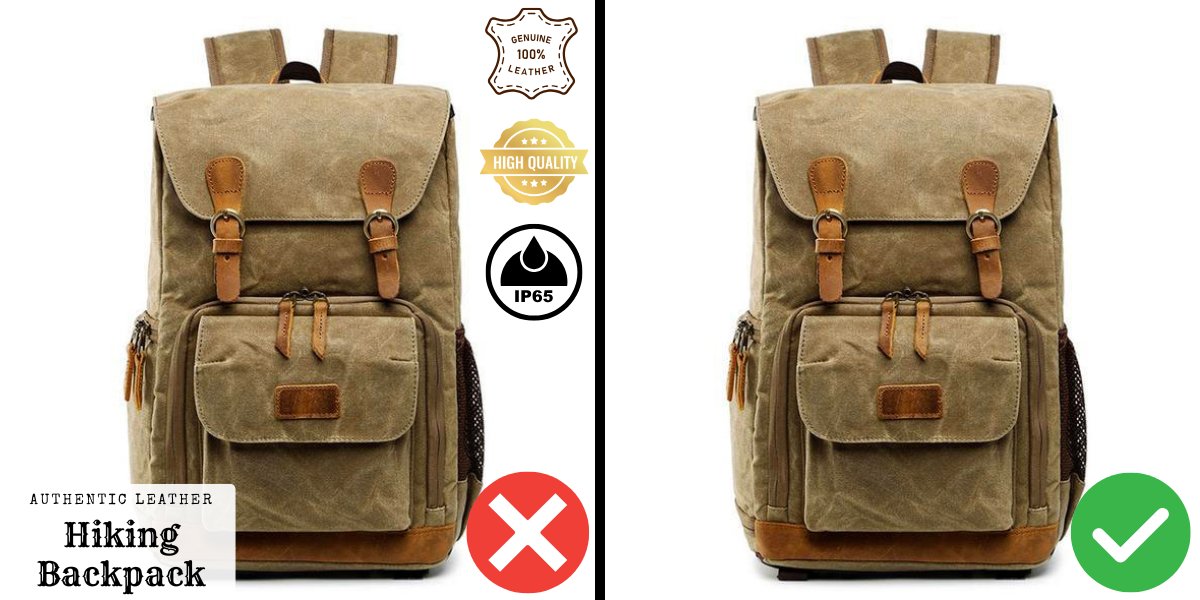
Make sure the product fills most of the frame. A good target is around 85% of the total space. This helps your product appear larger in search results, which makes it easier for shoppers to spot and click.
Size and zoom
Amazon unlocks zoom when your image hits at least 1,000 pixels on the longest side. Larger files often look better on mobile and desktop, so I like 1,500 to 2,000 pixels when possible. Just remember, you need to keep the file size under 10 MB.
File types
JPEG is the most common choice. PNG and TIFF are also accepted, and non-animated GIFs can work for some categories, but I almost always pick JPEG for the smaller file size and faster load times.
Color and orientation
Export in RGB, ideally sRGB, so colors display as expected on the web. If you’re uploading straight from a phone or camera, watch for EXIF orientation problems. If an image uploads sideways, rotate it in your editor and re-save before you publish.
Category Specific Requirements
If you sell in apparel or other special categories, there can be extra rules you’ll need to follow, but the basics stay the same: clean background, a focus on the product, high resolution, and no edge clipping.
Besides following Amazon’s rules and requirements, you’ll also want to make sure your images are optimized for clicks and conversions.
- Keep the main image simple, bright, and tight around the product.
- Avoid heavy shadows that tint the background gray.
- Make sure nothing is cut off by the frame
- Use your secondary images to show scale, features, lifestyle, and simple infographics where text is allowed
If you want a deeper dive into this topic, I wrote a full breakdown with examples in my guide on Amazon photography requirements. That article covers how to optimize your images for more sales, common mistakes to avoid, and includes a ton of helpful tips and examples.
Frequently Asked Questions (FAQs)
What are Amazon’s main image requirements?
Amazon’s main image should be a real photo of the product on a pure white background (RGB 255, 255, 255 / #FFFFFF), with the product filling about 85%+ of the frame. It should not include added text, logos/watermarks, borders, or graphic badges. Technically, keep it under 10 MB and use at least 1000 px on the longest side for zoom.

What size should Amazon product images be (minimum and recommended)?
Minimum: aim for at least 500 px on the shortest side and at least 1000 px on the longest side (so the image can zoom). Recommended for a crisp zoom experience: 2000-3000 px on the longest side. Avoid going over 10,000 px on any side, and keep the file under 10 MB so uploads don’t fail.
What file types does Amazon accept for product listing images?
Amazon accepts JPEG/JPG (preferred), PNG, TIFF, and GIF formats for product images, but animated GIFs are not supported. If you want the safest option, I recommend using a JPEG.
What is the maximum file size for Amazon images?
A good rule is to keep each listing image under 10 MB. If your file is too large, re-export it again using sensible compression setting (often ~80-90 quality), and remove any unnecessary metadata. Then re-check your images zoom readiness again to make sure you didn’t reduce the resolution by too much.
Do all Amazon images need a pure white background?
No. The pure white background requirement is for the main image (the one shown in search results). Secondary images can use lifestyle scenes, colors, and simple infographics to explain features or show scale. However, if your listing gets suppressed, the main image background being slightly off-white is one of the most common causes.
What does the “85% fill” rule mean on Amazon main images?
It means your product should take up most of the frame (roughly 85% or more), with minimal empty white space around it. If you don’t meet the requirement, the simplest fix is to crop tighter or reshoot so the product is closer to the camera. After cropping to increase fill, re-check that you didn’t cut off any part of the product.
Are text, badges, or infographics allowed on Amazon product images?
For the main image: no added text, badges, or graphic callouts. For secondary images: informational text and simple infographics are commonly used to explain features, sizing, and use-cases. Keep them clear on mobile and avoid anything that looks misleading (for example: fake reviews/stars, pricing/discount text, shipping claims, or “Amazon’s Choice/Best Seller”-style badges).
Why did Amazon reject or suppress my product image (and what should I check first)?
Most rejections/suppressions come from a short list of problems: the main image background isn’t pure white (#FFFFFF), the product doesn’t fill the frame (~85%+), there’s added text/watermarks/borders, the image is too small for zoom (under 1000 px), or the image doesn’t match the product/variation. Run your image through the checker and fix issues in this order: background → fill → overlays → dimensions/zoom → crop.
Additional Tools for Amazon Sellers
If you’re still new to the world of Amazon, we have a bunch of free tools and guides I recommend checking out.
- Free Amazon Product Listing Builder: Optimize your product page for free with our listing builder. Just upload your keyword list to get started.
- FBA Profit Calculator: A free tool to quickly validate potential product ideas. Calculate your potential margins, ROI, expected fees, and more.
- Amazon PPC Calculator: Another free tool to help sellers plan and optimize their Amazon Ad campaigns. Determine your ACoS, break-even CPC’s, plan out future campaigns, and optimize existing ones.
- Amazon Photography Requirements: 8 Steps to Stronger Product Photos: Learn how to optimize your images even further. This article teaches you how to create stunning product images that can increase click-through rates and drive more conversions.
- Amazon Listing Optimization in 2025: A Complete Guide: Once you’ve optimized your images, it’s time to upgrade the rest of your listing. Our guide teaches you how to take your title, bullet points, and A+ content to the next level to further boost your sales.
- Amazon Search Term Report Analyzer: Optimize your ad campaigns by quickly analyzing your search term report. Spot winning keywords, losing keywords, and find new ways to improve your campaign organization.
- What Is Amazon PPC? The Beginner’s Guide: Learn the basics of Amazon Advertising. This guide covers the different ad types, how the ad auction works, and it teaches you how to create your first ad campaign.
